Profile Setup
Last updated: February 17, 2026
Overview
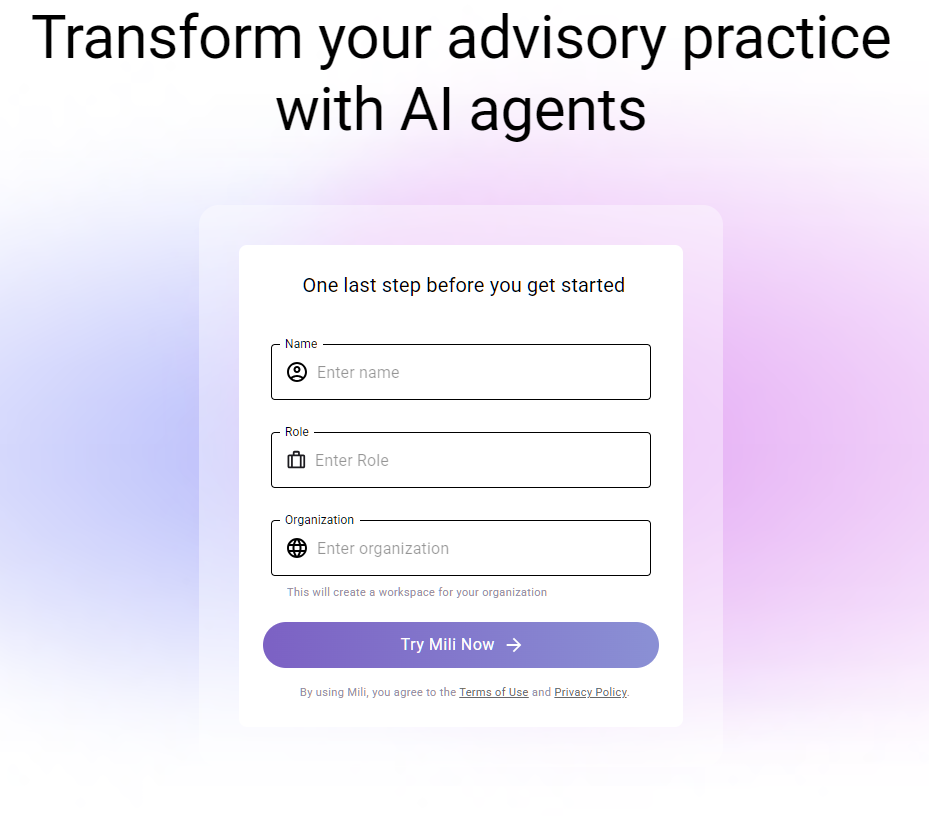
Once you have successfully logged into Mili for the first time, you will be prompted to set up your profile. This step allows you to personalize your Mili experience by providing essential information about yourself, including your name and professional role.
Steps
1. Enter Your Full Name
You will be asked to input your full name during the profile setup process.
This name will be displayed across the Mili platform, including in meeting notes, shared documents, and other communications.
2. Specify Your Role
Next, you will need to select or type your professional role within your organization (e.g., Financial Advisor, Compliance Officer, Admin, etc.).
Your role helps Mili tailor your experience, ensuring that you are presented with the best set of notes customized to your role
3. Save and Continue
After entering your details, click Try Mili Now to complete the profile setup.
Once saved, your profile is now active, and you will be directed to the Mili homepage, where you can begin using the application.
FAQs
Q: Can I change my profile details later?
A: Yes, you can update both your name and role at any time by navigating to Settings → Profile. Changes made here will be reflected throughout the Mili platform.
Q: Is my profile information visible to others?
A: Your name and role are visible within the Mili platform, including when you collaborate with team members or clients. However, you can control other visibility settings through your user preferences.
Q: Can I add multiple roles or custom roles?
A: You can type in as many roles you would like into the Role section and Mili will recognize and use that in the notes.