Mili
Last updated: 3 December 2025
Overview
This guide will walk you through the process of setting up your Mili account and logging in for the first time using Mili’s OTP-based authentication system. With Mili, you can streamline your workflows and access powerful features to enhance your experience with no password management required.
Mili is available for installation on multiple platforms to ensure compatibility with your device. Choose the appropriate version based on your operating system:
Supported Platforms:
Visit the Mili website or your device’s respective app store to download the application.
For Windows Users:
When installing on a Windows device, you may see a prompt to allow the installation from an unknown source. In such cases, click on “Install Anyway” to proceed with the installation.
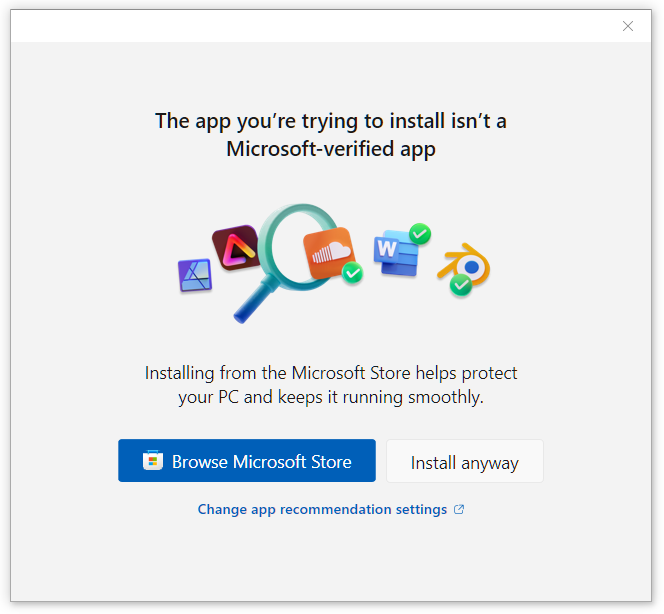
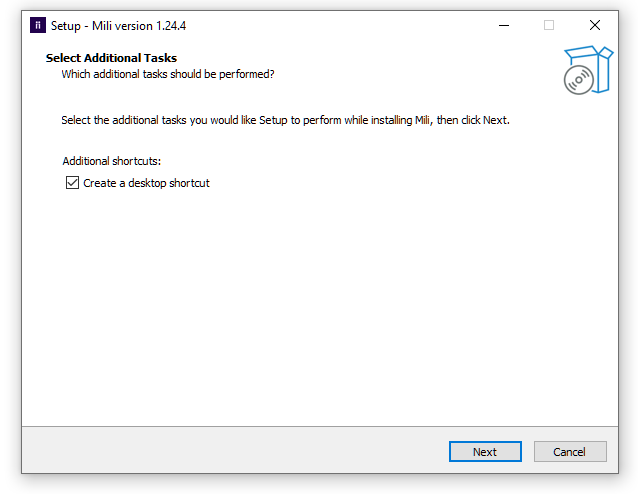
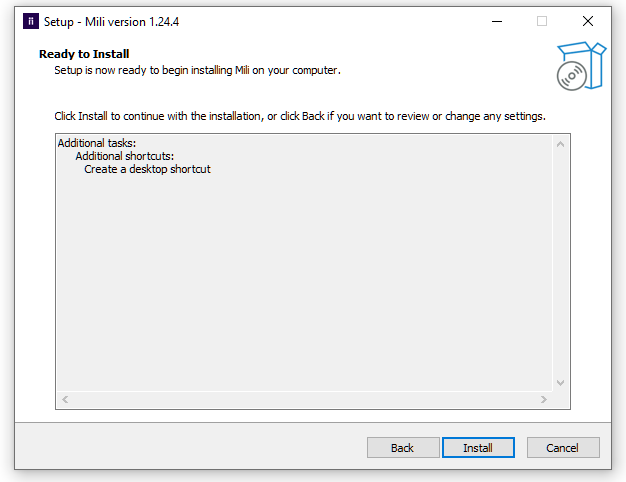
Follow the on-screen instructions to complete the installation process. Once installation is complete, you can proceed to launch the Mili application.
For macOS, iOS, and Android Users:
Simply follow the installation steps as guided on your device. Once the app is installed, open Mili to proceed to the next step.
Mili uses One-Time Password (OTP) authentication to ensure secure access to your account, eliminating the need for traditional password management. Here’s how to log in:
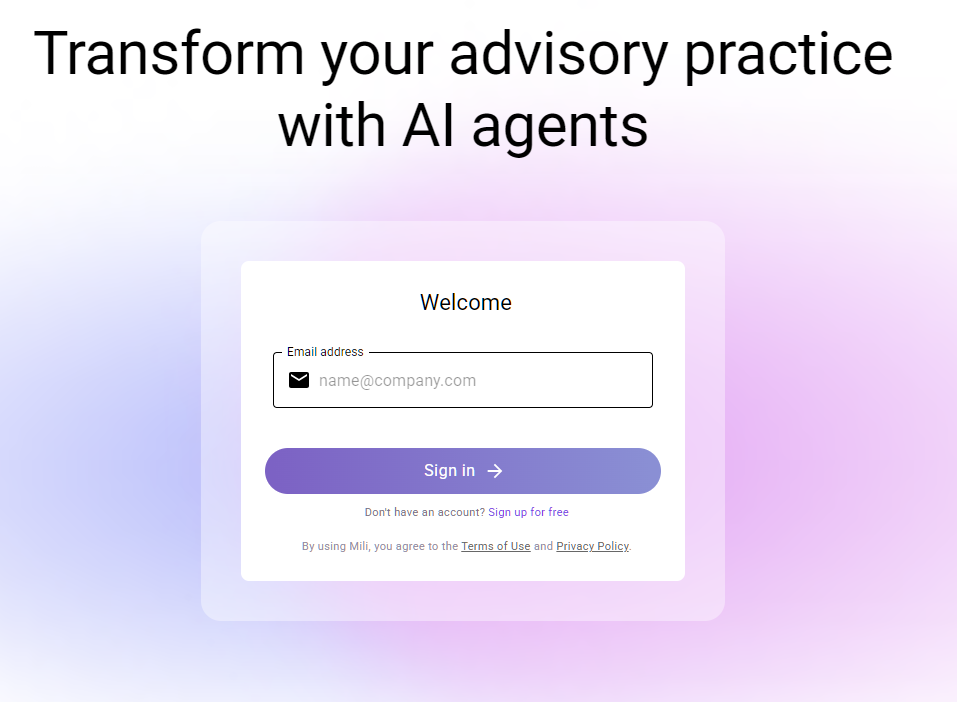
Enter Your Email
On the Mili home screen, you’ll be prompted to enter your registered email address.
Ensure that you enter the email address you used during registration to avoid login issues.
Receive the OTP
After entering your email, a One-Time Password (OTP) will be sent to the registered email address.
Check your inbox for the OTP. If you don’t see it, remember to check your spam or junk folder as well.
Enter the OTP
Enter the OTP received in your email in the application’s OTP field.
Upon successful entry of the OTP, you will be granted access to your Mili account.

Note: Mili’s OTP-based authentication removes the need for traditional passwords, simplifying security management for users.
Once logged in, you will be prompted to complete your profile setup:
Enter Your Full Name
This is the name that will appear across the Mili platform.
Specify Your Role
Select your professional role from the options provided, or enter a custom role if applicable.
This information helps personalize your experience within Mili, ensuring that the app is tailored to your needs.
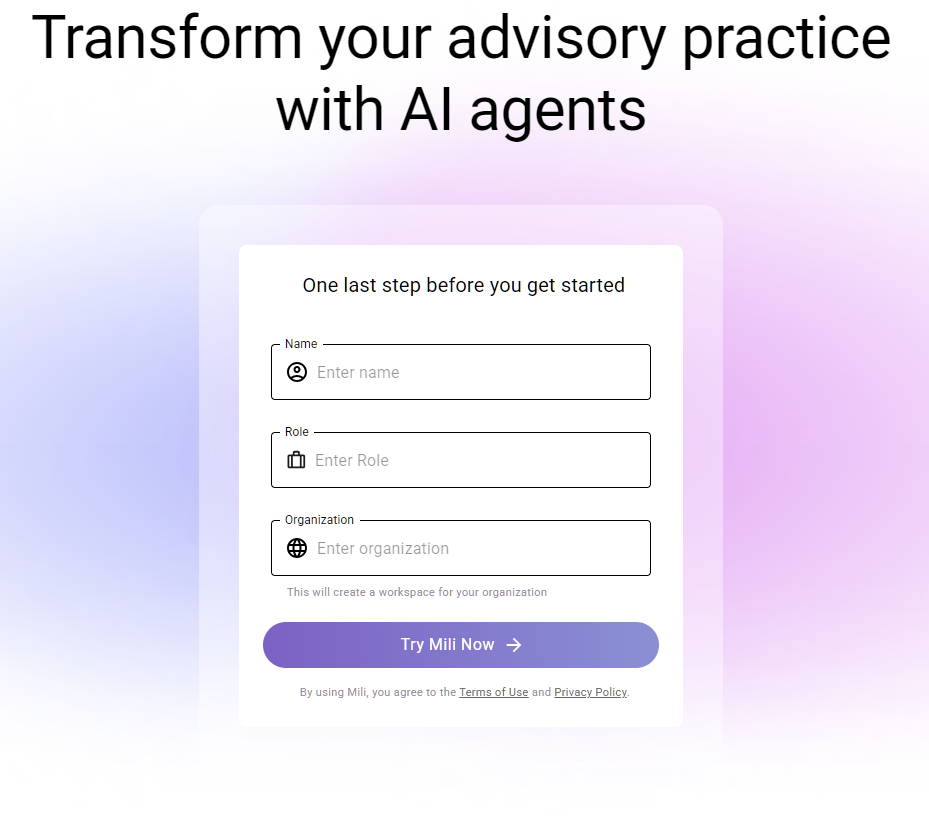
Once your profile information is entered, click "Try Mili Now" to proceed to the home screen.
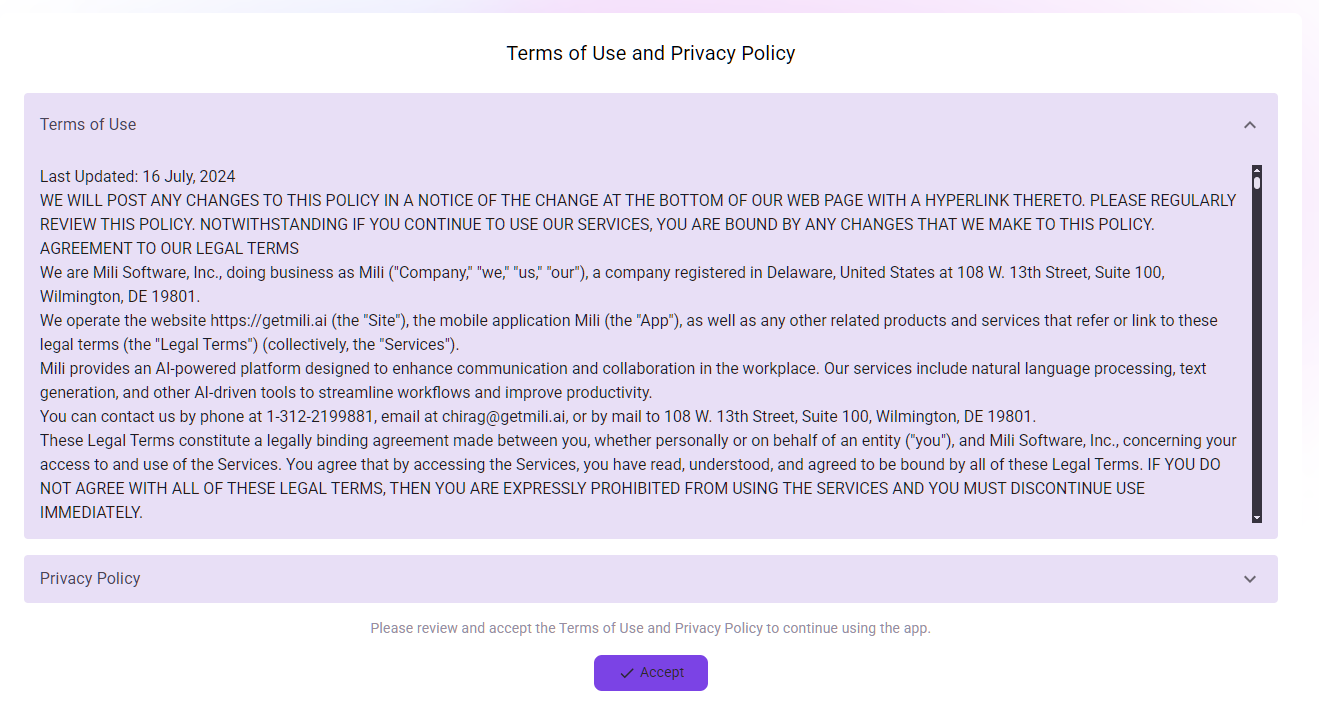
Mili requires users to accept the Terms of Service and Privacy Policy. These policies govern how we handle your data, your use of Mili’s features, and your rights as a user.
Carefully read the policies, and then click “Accept” to proceed.
Moving Forward
After accepting the policies, you will be directed to the Mili home screen, where you can begin using the application.
Q: What should I do if I didn’t receive the OTP?
A: First, check your spam or junk folder in case the email was filtered. If the OTP is not there, request a new OTP by clicking on the “Resend OTP” button within the app.
Q: Can I log into Mili on multiple devices using the same account?
A: Yes, you can log in to Mili on multiple devices. Simply enter your registered email address and OTP on each device. Each device will have its own session, allowing you to switch between them seamlessly.
Q: Do I need a password to use Mili?
A: No, Mili uses OTP-based authentication, so you do not need to remember or manage a password. This feature simplifies the login process and enhances security.
Q: Can I change my profile information after logging in?
A: Yes, your name and role can be updated at any time. To do so, navigate to Settings → Profile where you can make necessary changes.
Q: Why does Mili use OTP instead of a password?
A: OTP-based login provides a higher level of security and eliminates the risk of password-related issues, such as forgetting your password or potential breaches. It ensures that only the person with access to the registered email can log in.
Q: How long does the OTP remain valid?
A: The OTP is time-sensitive and will expire after a certain period. If you are unable to use the OTP before it expires, you can request a new one via the app